Android interface planning
Start free app design for android with a clear screen plan
A promising Android idea can become a confusing interface when navigation, touch targets, and system controls are considered too late. Use App Design to plan the screens and interactions first, then check your choices against current Android guidance before development.
The scenario's pain
An attractive mockup is not enough if it leaves out the back action, keyboard behavior, or the state a user sees when data is missing. Start with a task and the screens needed to finish it.
- mobile app design ideas Explore mobile scenarios that can give an Android screen plan a more specific purpose.
- mobile app design templates free See how to evaluate a mobile template before adapting its layout to your task.
- how to design ui for an app Follow a screen-by-screen process for turning a task into an interface.
A browser-based design plan helps you reason about an Android interface. It does not replace platform documentation, implementation, or testing on a device.
No installable Android app
A screen plan or mockup is not an APK or a published application. It does not implement storage, permissions, notifications, or other device behavior.
What to do instead
Treat the design as a specification for development, and test the implemented flows on Android devices.
No automatic standards approval
A visually plausible screen may still conflict with current Android navigation, accessibility, or system-bar recommendations.
What to do instead
Review relevant Android and Material guidance, then inspect contrast, readable text, touch targets, and back behavior.
No proof from a static image
A polished example cannot show whether the keyboard obscures a button, a long label wraps, or an empty state explains what to do next.
What to do instead
Write down interaction states and validate them with a prototype or working build.
3 concrete workflows
Choose one of these starting points based on what is least certain: the journey, the form, or the way content behaves on a small screen.
-
1
Map a first-use journey
Name the user's goal, then sketch an entry screen, the primary action, and a completion state. Mark where Android back navigation should return the user. Keep optional account or permission requests out of the critical path unless the task truly needs them.
-
2
Design a data-entry task
List each field, its keyboard type, validation message, and save behavior before arranging controls. Check what remains visible when the keyboard opens, and give users a way to correct an error without losing entered information.
-
3
Adapt a content screen
Start with the most important information, then plan loading, empty, and error states. Review long text, larger font settings, and narrow widths. Decide which action stays prominent without relying on color alone to explain it.
Example output
Consider a habit tracker whose home screen answers one question: what should I do today? Its design brief should cover more than the default, populated view.
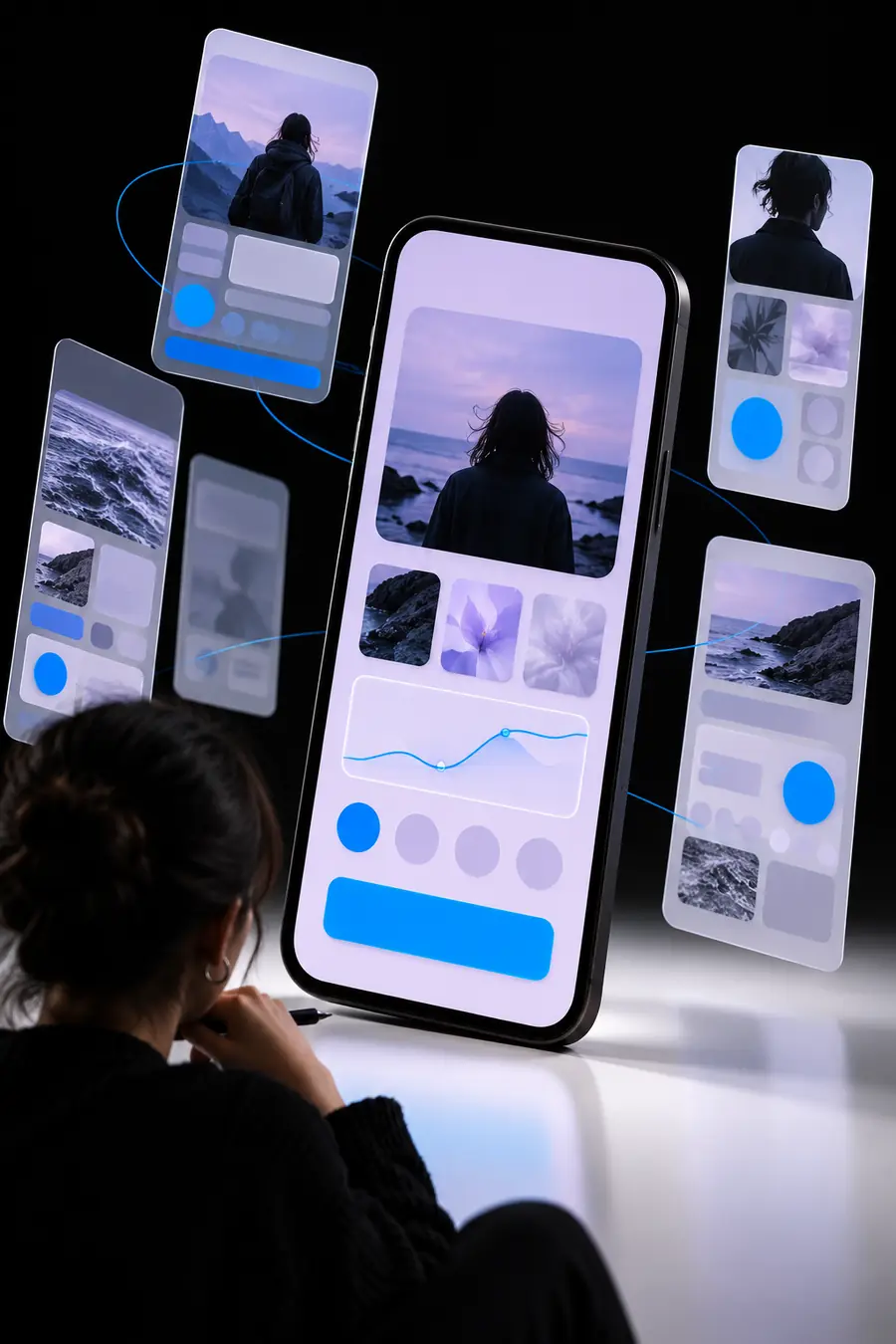
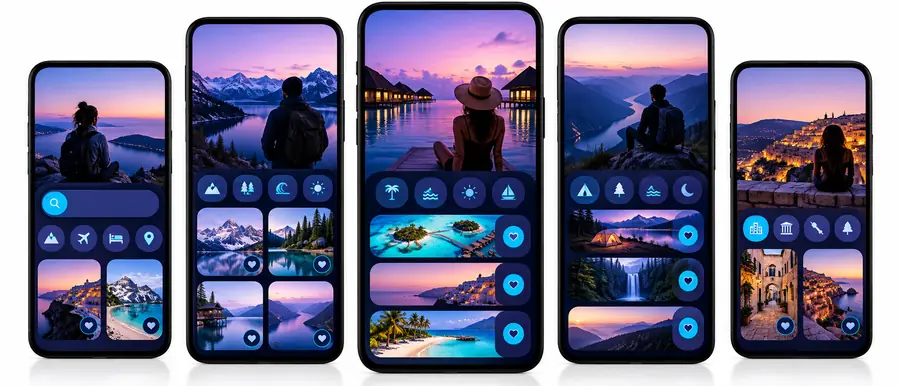
Use this pair as an illustration, not a verified transformation or a ready-to-build Android file. A useful output for the habit tracker would specify a today list, a clearly named add action, a blank-state explanation, and what happens after a habit is saved. It would also describe back navigation from the form and what the user sees if saving fails. Review those decisions against current platform guidance and test them in a prototype.
Initial conceptAndroid-focused reviewCompliance notes
Before treating any app design as an Android specification, check the latest Android and Material documentation for navigation, system surfaces, accessibility, and permissions. Test with larger text and assistive technology where possible. App Design offers a starting path for planning; the linked browser destination may have its own access terms, and a concept alone cannot establish compliance.
Carry the screen plan into a platform review
- Document normal, empty, loading, and error states.
- Check back navigation and keyboard behavior.
- Validate the implemented experience on devices.
Scenario FAQ
You can start by writing a screen brief and mapping the task in a browser-based workflow. Do not assume that every feature at the linked destination is available without charge; check its current access terms before relying on it.
No. A design describes screens and interactions, while a working Android app requires implementation, device testing, and any applicable release steps. Keep the screen plan separate from claims about what has been built.
Check whether its navigation and controls suit the task rather than copying the layout unchanged. Review text scaling, touch targets, system bars, and back behavior against current Android guidance.
Start with the entry screen, the screen where the main task happens, and a clear result or confirmation state. Then add the empty, loading, and error states that affect that same journey.